In an era where artificial intelligence is rapidly evolving, the ability to harness powerful language models locally on personal hardware is becoming increasingly accessible and desirable. This guide will demonstrate how to set up and run a small language model (SLM) on your own machine in under 15 minutes, utilizing the streamlined capabilities of Ollama. We will delve into the underlying technologies, address common challenges, and explore the broader implications of this decentralized approach to AI.
The Rise of Local AI and the Role of Small Language Models
The landscape of artificial intelligence has been dramatically reshaped by the emergence of efficient, smaller language models. These advancements are shifting computational workloads away from expensive, centralized cloud APIs towards more distributed and private solutions. As previously explored in introductory pieces on small language models, compact yet capable models such as Meta’s Llama 3.2 3B and Google’s Gemma 2 9B are now viable for deployment on standard consumer hardware, including laptops.
While understanding the theoretical underpinnings and selecting appropriate models are crucial first steps, the true value lies in experiencing a fully functional AI model operating directly on one’s personal machine. This offers unprecedented benefits: complete offline operation, enhanced data privacy, and a cost-effective, per-token usage model. Historically, establishing such local AI environments involved navigating complex technical hurdles, including the intricacies of CUDA driver configurations, managing Python virtual environments, and resolving often frustrating dependency conflicts. However, the introduction of Ollama has fundamentally simplified this process, offering a "happy path" for users to achieve local AI inference with minimal friction. This guide aims to provide a clear, step-by-step walkthrough, focusing on a direct route to a working AI chat session without unnecessary complications or platform-specific divergences.
Why Ollama Revolutionizes Local AI Deployment
Ollama has rapidly ascended as the preferred tool for local AI deployment due to its elegant solution for packaging complex model architectures into a cohesive, lightweight background service. It effectively abstracts away the complexities of model downloads, native hardware acceleration management, and the intricacies of exposing a simple, local API. In essence, Ollama functions as a specialized Docker for language models. Instead of wrestling with raw model weights and intricate configurations, users interact with the system through a concise set of straightforward commands. This design philosophy democratizes access to advanced AI capabilities, making them tangible for a broader audience.
The platform’s success is rooted in its ability to unify the deployment process across different operating systems. Whether a user is on macOS, Windows, or Linux, the fundamental installation and operation of Ollama remain consistent. This cross-platform compatibility significantly reduces the learning curve and eliminates the need for platform-specific troubleshooting.
The Streamlined Path: Install, Pull, and Chat
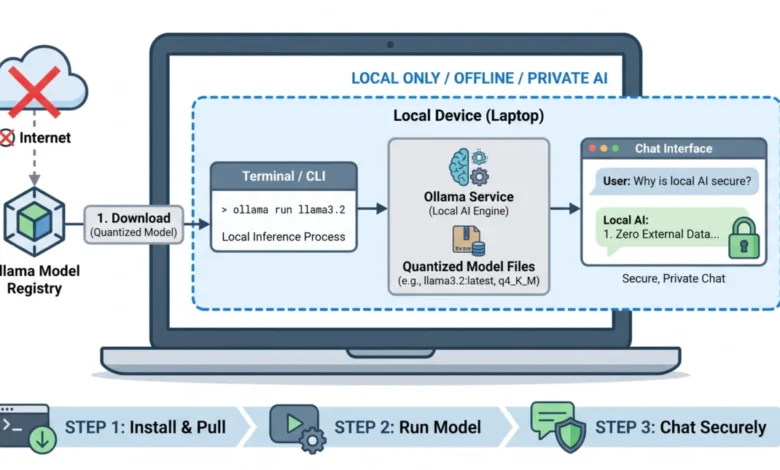
Embarking on the journey to run a local AI model with Ollama is designed to be an intuitive three-step process, leading from a blank slate to an interactive chat session in under 15 minutes. This unified flow ensures that regardless of the user’s operating system, the experience is virtually identical.
Step 1: Installing Ollama
The initial step involves acquiring the Ollama installer tailored for your specific operating system. The official Ollama website (ollama.com) provides direct download links for macOS, Windows, and various Linux distributions. The installation process itself is typically straightforward, involving running the downloaded installer and following the on-screen prompts. Once installed, Ollama runs as a background service, making its functionalities readily available for subsequent commands.
Step 2: Downloading Your First Model
With Ollama installed and operational in the background, the next crucial step is to download an actual language model. This is achieved through a simple terminal command. For this guide, we will be deploying Llama 3.2 3B, a model renowned for its balanced performance and suitability for everyday laptop use.
Open your system’s terminal (or Command Prompt/PowerShell on Windows) and execute the following commands:
# Verify Ollama is running by checking the version
ollama --version

# Pull and immediately run the Llama 3.2 3B model
ollama run llama3.2
Upon executing the ollama run llama3.2 command, Ollama will initiate the download of the model layers. Llama 3.2 3B is highly optimized, and its download size is approximately 2.0 GB. On a standard broadband internet connection, this download typically completes in under three minutes.
Step 3: Your First Chat Session
Once the model download reaches 100%, your terminal seamlessly transitions into an interactive chat interface. You are now directly interacting with an AI model running entirely on your local hardware. This means no internet connection is required for inference, and no data is transmitted off your machine, ensuring complete privacy. To commence your first conversation, try the following prompt:
>>> Write a three-bullet-point summary explaining why local AI is secure.The AI’s response will appear directly in your terminal, showcasing its capabilities. The output, demonstrating the security benefits of local AI, is as follows:
- Zero External Data Transmission: Your prompts and data never leave your local machine, eliminating the risk of cloud-based data leaks or third-party logging.
- Complete Offline Functionality: Because the model runs entirely on your local hardware, it requires no internet connection, preventing network-based interception.
- Total Infrastructure Control: You retain absolute ownership over the hardware and environment, allowing you to enforce strict access controls and compliance policies.
To exit the chat session at any time, simply type /bye and press Enter.
Deconstructing the Downloaded Model: Quantization and Performance
The seemingly simple three-step process of installing, pulling, and chatting involves a sophisticated interplay of technologies. Understanding what resides on your hard drive after downloading a model like Llama 3.2 3B is crucial for making informed decisions about resource management, memory allocation, and performance optimization in future endeavors.
Model Tags and Default Behavior
When you specify a model name without a tag, such as llama3.2, Ollama defaults to using the :latest tag. For Llama 3.2, this tag typically points to the 3-billion parameter variant, which represents a carefully balanced compromise between computational speed and functional capability suitable for consumer-grade hardware.
The Power of Quantization
A key factor enabling the efficient deployment of large language models on consumer hardware is quantization. A 3-billion parameter model, if stored at standard 16-bit floating-point precision (fp16), would require approximately 6 GB of Video RAM (VRAM) to load its weights alone. However, the download size for Llama 3.2 3B is around 2.0 GB. This significant reduction is achieved through quantization, a process that compresses the model’s weights from full-precision floating-point numbers down to 4-bit integers. This technique not only drastically reduces the memory footprint by over 60% but also noticeably accelerates inference speeds, with only a marginal impact on accuracy. Quantization is the primary reason why capable language models can now comfortably operate on laptops. Ollama defaults to 4-bit quantization, specifically using the q4_K_M variant, which offers an excellent balance of compression and performance.
Output Sanity Check: Recognizing Optimal vs. Degraded Performance
Given the compact nature of 3-billion parameter models, their performance can sometimes be affected when system resources are constrained. Being able to identify whether the model is operating optimally or experiencing strain is essential. Indicators of expected performance include:
- Rapid Response Times: Chat responses are generated quickly, with text appearing fluidly.
- Coherent and Contextually Relevant Output: The AI’s answers are logical, grammatically sound, and directly address the user’s prompts.
- Smooth Text Generation: The output appears as a continuous stream of text rather than being delivered in fragmented chunks.
Conversely, signs of degraded performance might include:
- Slow Response Initiation: A significant delay before the AI begins to generate a response.
- Stuttering Text Output: Text appearing word by word or in very small increments, indicating that the model is struggling to process and generate output efficiently.
- Repetitive or Nonsensical Responses: The AI may produce outputs that are repetitive, lack coherence, or deviate significantly from the expected context, suggesting that the quantization or computational limitations are impacting its reasoning.
If your output appears degraded, the subsequent section offers solutions to common issues.
Troubleshooting Common First-Run Failures with Ollama
While Ollama’s installation process is generally robust, variations in hardware configurations can occasionally lead to unexpected issues. Instead of sifting through complex log files, this quick reference guide provides a straightforward method for diagnosing and resolving the three most common first-run failures.
| Symptom / Error | Root Cause | The Immediate Fix |
|---|---|---|
| Chat response takes minutes to start, or text prints one word every few seconds. | Insufficient VRAM/RAM. The model is too demanding for your GPU, forcing Ollama to rely on slower CPU/system memory for processing. | Close memory-intensive applications such as web browsers (e.g., Chrome) or Integrated Development Environments (IDEs). Alternatively, opt for a lighter model by running ollama run smollm2:1.7b. |
| Error: "Failed to contact GPU driver" or Ollama defaults to CPU on a high-end gaming laptop. | GPU driver mismatch. Ollama is unable to establish a connection with your dedicated GPU. This is often due to outdated Nvidia CUDA or AMD ROCm drivers. | Update your GPU drivers to the latest available version. On Windows and Linux, verify that the CUDA_VISIBLE_DEVICES environment variable is not inadvertently restricting access to the GPU. |
| Error: "address already in use" or "Error: listen tcp 127.0.0.1:11434: bind: address already in use" | Port conflict. Another instance of Ollama is already running as a background service, preventing the terminal from establishing a new connection. | Do not attempt to relaunch the application. Instead, execute your command directly in the terminal (e.g., ollama run llama3.2). The background daemon is already active and listening on port 11434. |
The Future of Local AI: Next Steps and Implications
Establishing a functional local inference setup with Ollama marks a significant milestone. You now possess a private AI engine that is entirely under your control: free from API keys, rate limits, subscription fees, and data privacy concerns. This capability represents a powerful foundation for a wide array of AI applications and is merely the beginning of your journey into decentralized AI.
The path forward is straightforward. To explore other models from the list of top small language models, you simply need to substitute the model name in your terminal command. For instance, you can run ollama run gemma2:9b or ollama run phi3.5, among others. Each model possesses distinct strengths, with some excelling in logical reasoning, others in code generation, and some in handling extensive context. Experimenting with several models will quickly reveal which ones best align with your specific workflow and requirements.
As you become more proficient, consider leveraging Ollama’s local API, which operates on localhost:11434 and is compatible with the OpenAI API structure. This integration opens up possibilities for embedding local models into your custom scripts, tools, and applications. This foundational knowledge, combined with your understanding of quantization techniques and hardware considerations, will serve as an invaluable asset as you delve into more advanced local AI development. The decentralization of AI capabilities, driven by tools like Ollama, promises to democratize access to cutting-edge technology and foster innovation across a broad spectrum of fields.