Optimizing Your Android Auto Experience: Five Essential Settings for Safer and More Personalized Drives

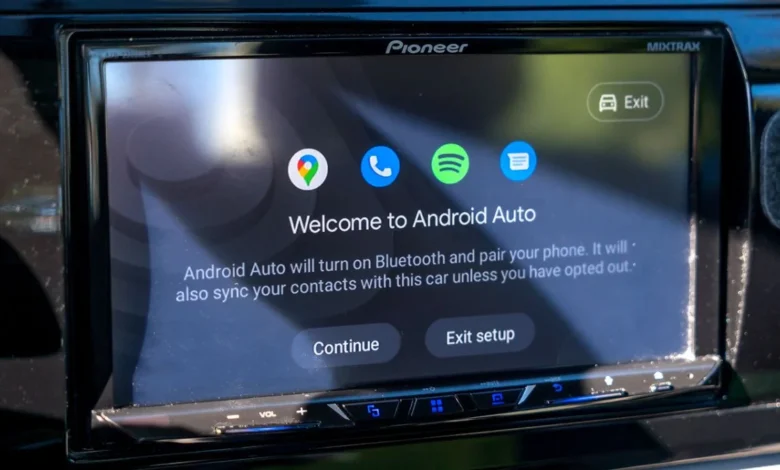
Android Auto, Google’s robust platform for integrating smartphone functionalities into vehicle infotainment systems, has been a staple for drivers for over a decade. Since its debut in 2015, it has evolved into an indispensable tool for maintaining connectivity, navigating routes, and enjoying entertainment safely while on the road. While a wired connection remains standard in many vehicles, wireless Android Auto is increasingly common, moving beyond premium models to a broader range of new cars. Google consistently enhances the platform with new features, from support for communication apps like Google Meet to the recent integration of its advanced AI, Gemini, promising a smarter and more conversational driving experience. However, to truly harness Android Auto’s potential and tailor it to individual preferences, adjusting a few key settings on your phone can make a significant difference in daily usage, elevating both convenience and safety.
Android Auto: A Decade of In-Car Connectivity and Evolution
Launched at Google I/O in 2014 and becoming widely available in 2015, Android Auto was conceived to address the growing challenge of smartphone distraction while driving. Its core premise was simple yet revolutionary: project a simplified, driver-friendly interface of essential smartphone applications directly onto the car’s dashboard screen. This allowed drivers to access navigation, communication, and media controls through the vehicle’s built-in display and controls, or via voice commands, minimizing the need to physically interact with their phones.
The platform initially relied on a USB cable connection, which, while reliable, presented a minor inconvenience for users. Over the years, the demand for a seamless, wireless experience grew, leading to the introduction of wireless Android Auto. This advancement eliminated the need for cables, allowing phones to connect automatically via Wi-Fi and Bluetooth, a feature now increasingly standard in modern vehicles across various price points. This shift has significantly contributed to user convenience, reducing clutter and enabling immediate connectivity upon entering the vehicle.
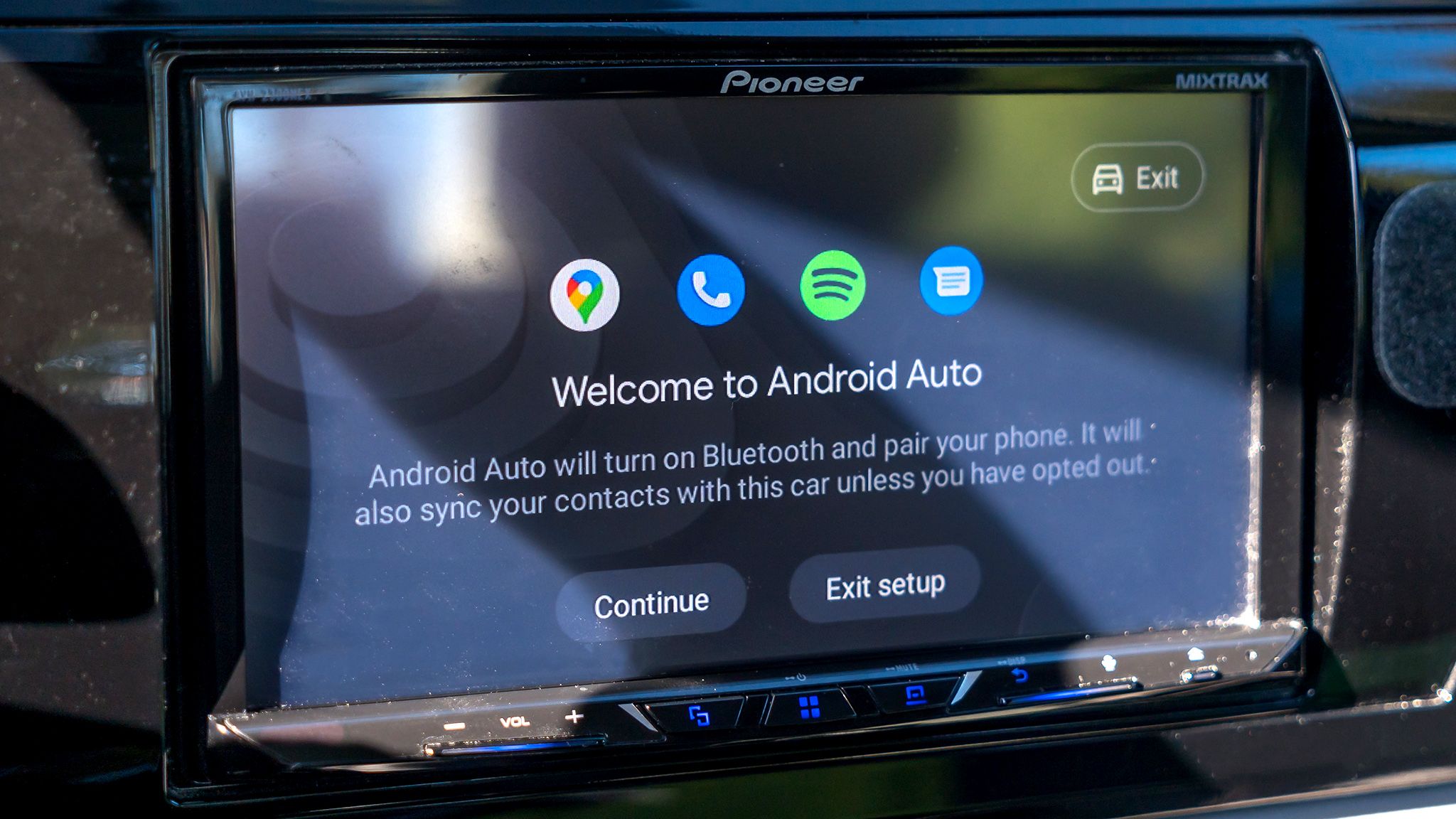
Google’s commitment to continuous improvement is evident in Android Auto’s feature roadmap. Recent additions include the integration of Google Meet, allowing users to join calls directly from their car, albeit with certain safety restrictions. More notably, the ongoing rollout of Gemini, Google’s generative AI, promises to revolutionize voice interaction within Android Auto. Gemini aims to provide more natural, context-aware responses and proactive assistance, moving beyond simple commands to offer a genuinely intelligent co-pilot experience. This iterative development underscores Android Auto’s position as a dynamic and evolving ecosystem, constantly adapting to user needs and technological advancements. According to industry reports, Android Auto is now compatible with hundreds of car models from major manufacturers worldwide, boasting a user base in the tens of millions, highlighting its pervasive influence on the in-car experience.
The Imperative of Personalization for Driver Safety and Convenience
While Android Auto functions admirably out of the box, its default settings are designed for broad appeal rather than individual optimization. This can lead to minor annoyances or, more critically, potential safety hazards due to unnecessary distractions. Personalizing these settings is not merely about comfort; it’s a proactive step towards creating a safer driving environment. Studies consistently show that distracted driving, often exacerbated by smartphone notifications and unexpected audio cues, is a leading cause of accidents. By taking a few moments to adjust Android Auto’s behavior, drivers can significantly reduce cognitive load, minimize visual and auditory interruptions, and focus more intently on the road. The following five adjustments are highly recommended for any new Android Auto user, offering immediate benefits in terms of control, safety, and overall user satisfaction.
Optimizing Your Android Auto Experience: Five Essential Settings
1. Eliminating Automatic Music Playback Upon Connection
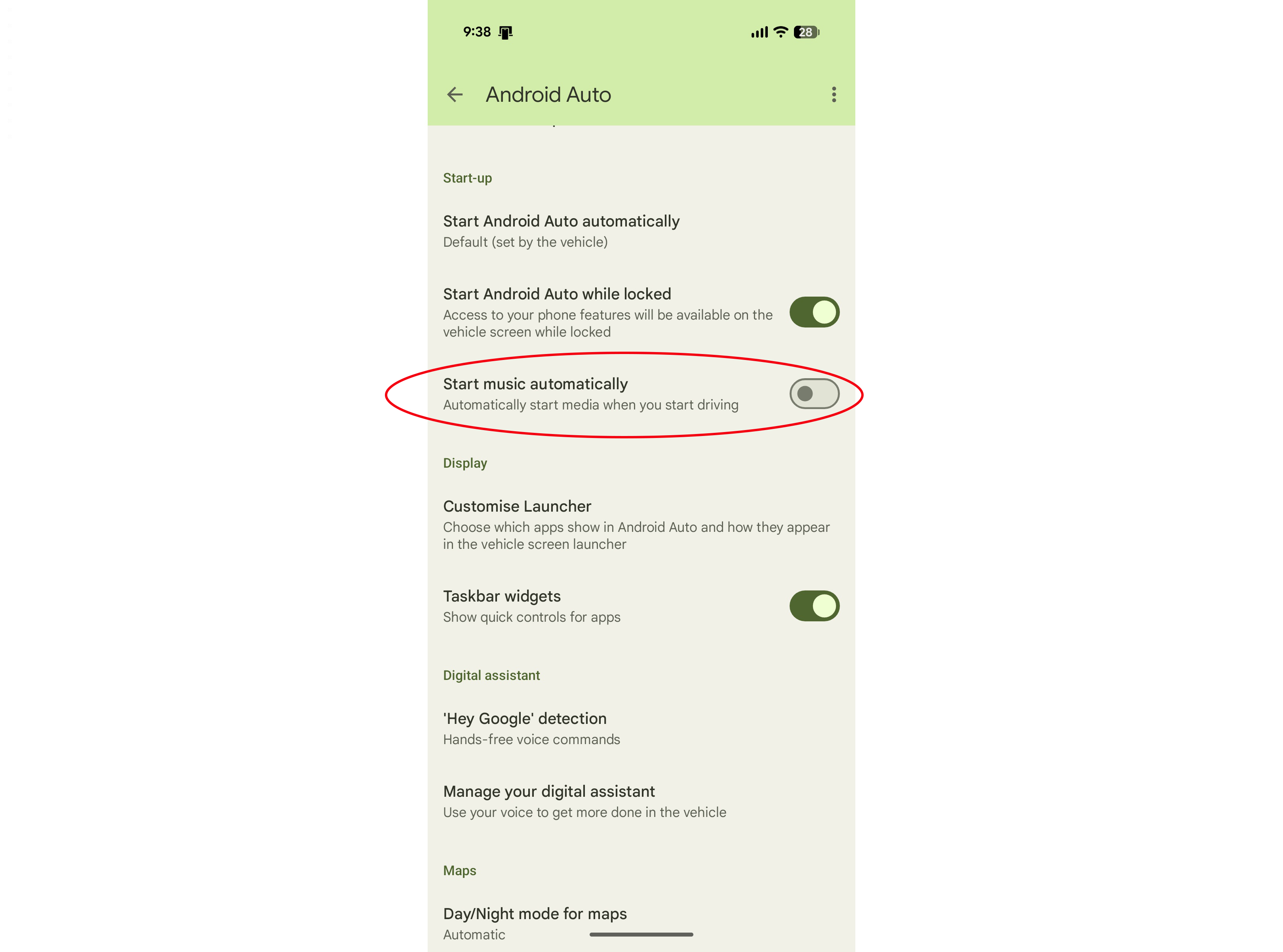
One of Android Auto’s most frequently cited annoyances is its default behavior of automatically starting music playback as soon as a phone connects to the car. This can be jarring, particularly if the volume was high from a previous trip, or if the selected track is inappropriate for the current company. Imagine a sudden burst of heavy metal at high volume during an important business call or a quiet moment. Such unexpected audio can startle the driver, divert attention, and create an uncomfortable atmosphere.
To prevent this:
- On your phone, navigate to Settings.
- Search for "Android Auto" or find it under "Connected devices" or "Apps."
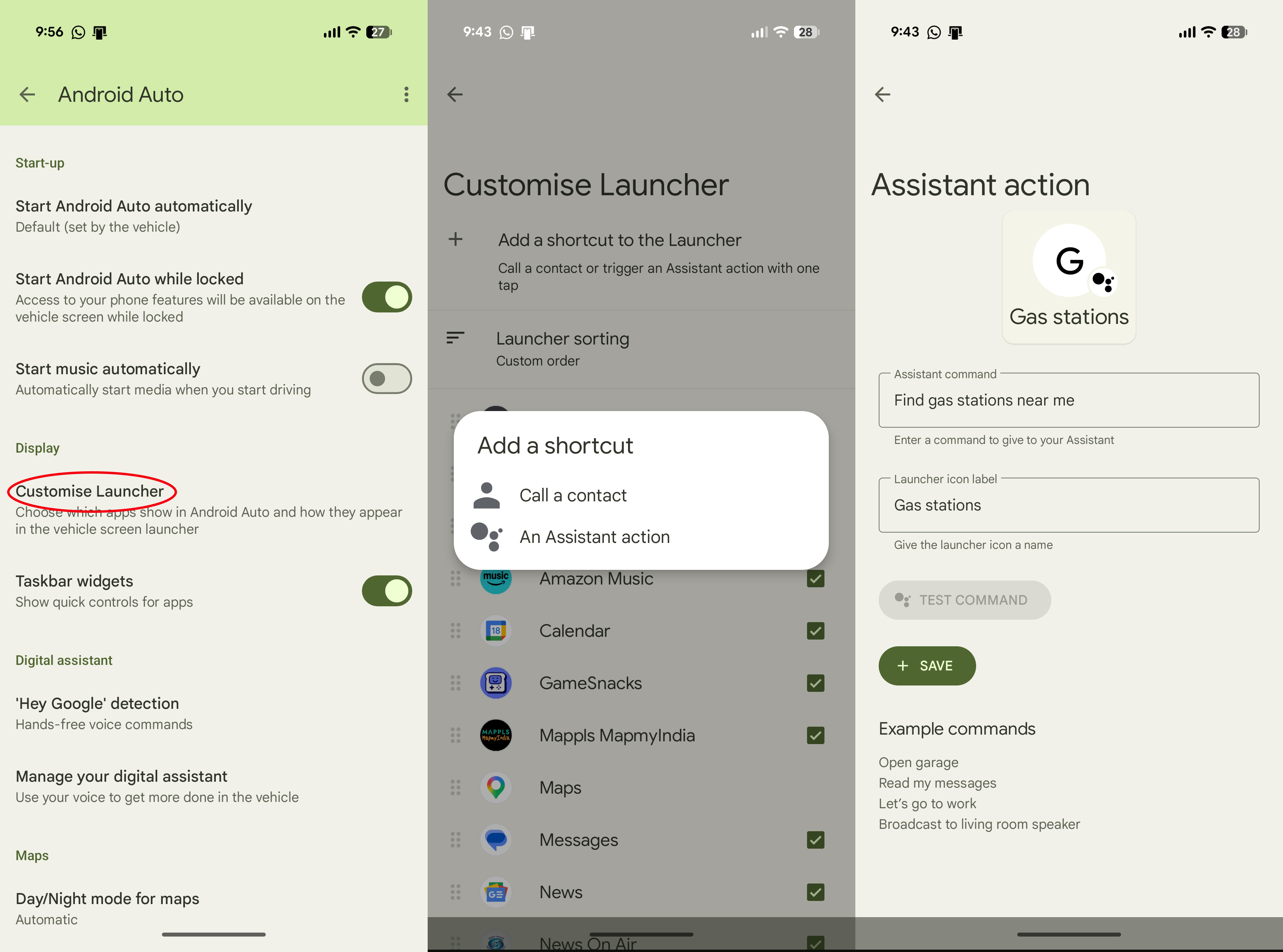
- Within the Android Auto settings menu, scroll down to the Start-up sub-menu.
- Locate and disable the toggle switch labeled "Start music automatically."
The implication of this simple tweak is profound. It restores control to the driver, ensuring that audio playback only begins when deliberately initiated. This fosters a calmer start to any journey, eliminates potential embarrassment, and, crucially, removes an unexpected auditory distraction that could momentarily pull focus from the road, contributing to a safer initial driving phase.
2. Curbing Notification Overload for Focused Driving
In an age of constant digital communication, our phones are barraged with notifications from messaging apps, social media, and various other applications. While staying connected is one of Android Auto’s benefits, a constant stream of pop-up alerts and audible pings on the car’s infotainment screen can be a severe distraction. Flashing notifications demand visual attention, and chimes divert auditory focus, both of which are detrimental to driver concentration. Research from organizations like the National Highway Traffic Safety Administration (NHTSA) consistently highlights how notification-related distractions significantly increase the risk of accidents.
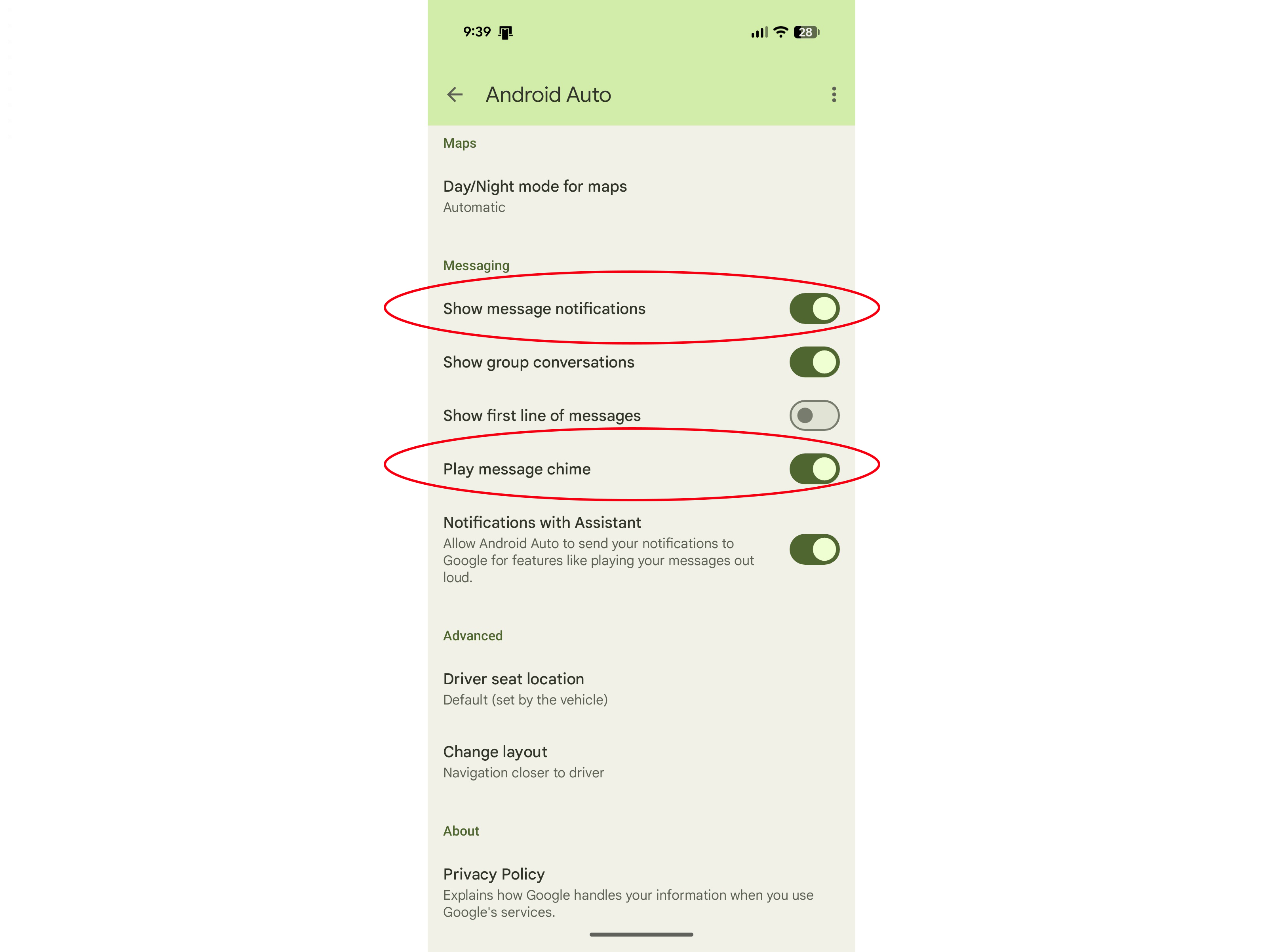
Android Auto offers two primary ways to manage these interruptions:
-
Disabling Audible Notification Chimes:
- On your phone, go to the Android Auto settings menu.
- Scroll down to the Messaging sub-menu.
- Disable the toggle switch labeled "Play message chime." This will silence the audible alert, but visual notifications will still appear.
-
Disabling All Message Notifications:
- To completely prevent message pop-ups, in the same Messaging sub-menu, disable the option "Show message notifications." This will stop both audible chimes and visual alerts for incoming messages.
-
Customizing the App Launcher to Filter Apps:
- A more comprehensive approach to minimize notifications from specific apps is to remove those apps from the Android Auto app drawer entirely.
- From the main Android Auto settings menu on your phone, scroll up to "Customize Launcher."
- Here, you will see a list of all compatible apps. Simply uncheck the box next to any app you do not wish to use or receive notifications from within Android Auto (e.g., specific media players you don’t use in the car, or less critical messaging apps).
By implementing these changes, drivers create a significantly less cluttered and distracting in-car environment. This allows for greater focus on driving, navigation, and essential communications, directly enhancing road safety and reducing the cognitive burden associated with constant digital interruptions.
3. Managing Android Auto’s Automatic Startup for Greater Control
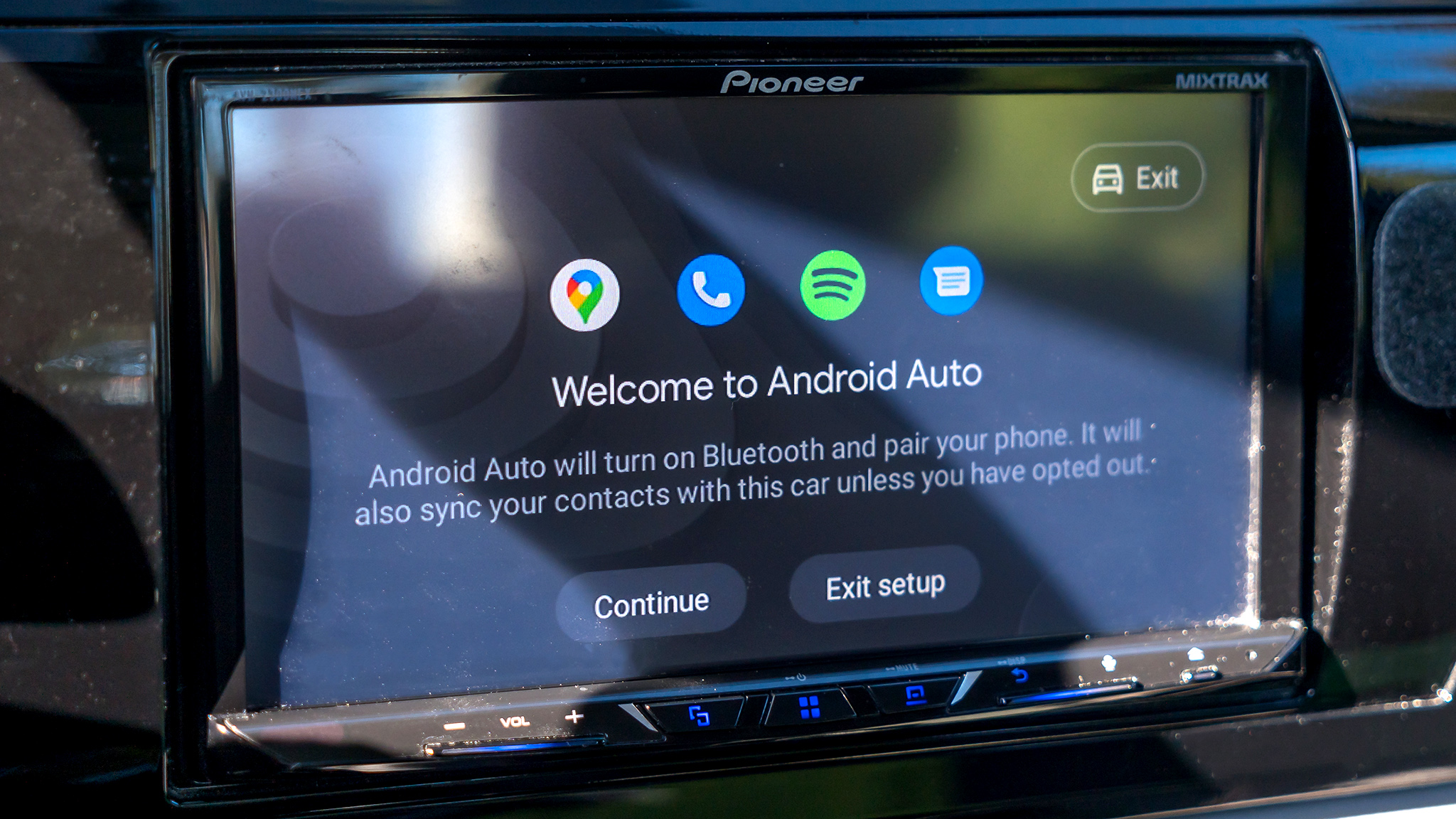
While the seamless, automatic launch of Android Auto upon starting the car is often touted as a convenience, it isn’t always desired. There are scenarios where a driver might prefer to listen to the car’s radio, connect only for calls via Bluetooth, or simply conserve their phone’s battery life, especially when using wireless Android Auto, which consumes more power. Unfortunately, Android Auto currently lacks a direct, explicit setting to completely disable its automatic startup while maintaining Bluetooth connectivity for basic functions.
However, a proven workaround exists:
- On your phone, access the Android Auto settings menu.
- Scroll to the Start-up sub-menu.
- Disable the toggle switch labeled "Start Android Auto while locked."
The effect of this setting is that if your phone remains locked when it connects to the car, Android Auto will not automatically launch. Your phone will still establish a Bluetooth connection for hands-free calling and other basic vehicle-phone integrations, but the full Android Auto interface will remain inactive. Should you decide mid-journey that you need navigation or media, you will typically see a notification on your phone indicating "Android Auto is available." Tapping this notification or manually selecting Android Auto from your car’s infotainment screen will then launch the interface.
This workaround offers a valuable degree of flexibility. It allows users to choose when and if they want Android Auto active, preventing unnecessary battery drain on shorter trips or when alternative in-car entertainment is preferred. It empowers the driver to decide their digital environment, rather than having it automatically imposed, contributing to a more personalized and energy-efficient driving routine.
4. Streamlining Interactions with Custom Shortcuts for Efficiency
Voice commands, especially with the increasingly sophisticated Google Assistant and Gemini AI, are a cornerstone of safe interaction with Android Auto. They allow drivers to perform tasks without taking their hands off the wheel or eyes off the road. However, environmental factors like wind noise from an open window, loud passengers, or even road noise can sometimes impede the voice assistant’s ability to accurately interpret commands. In such situations, having one-tap shortcuts for frequently used actions becomes incredibly valuable, offering a reliable alternative to voice input.
Android Auto allows users to create two types of custom shortcuts:
- Call a Contact Shortcut: This allows you to create a direct dial button for a specific contact. Ideal for frequently called family members, friends, or emergency contacts.
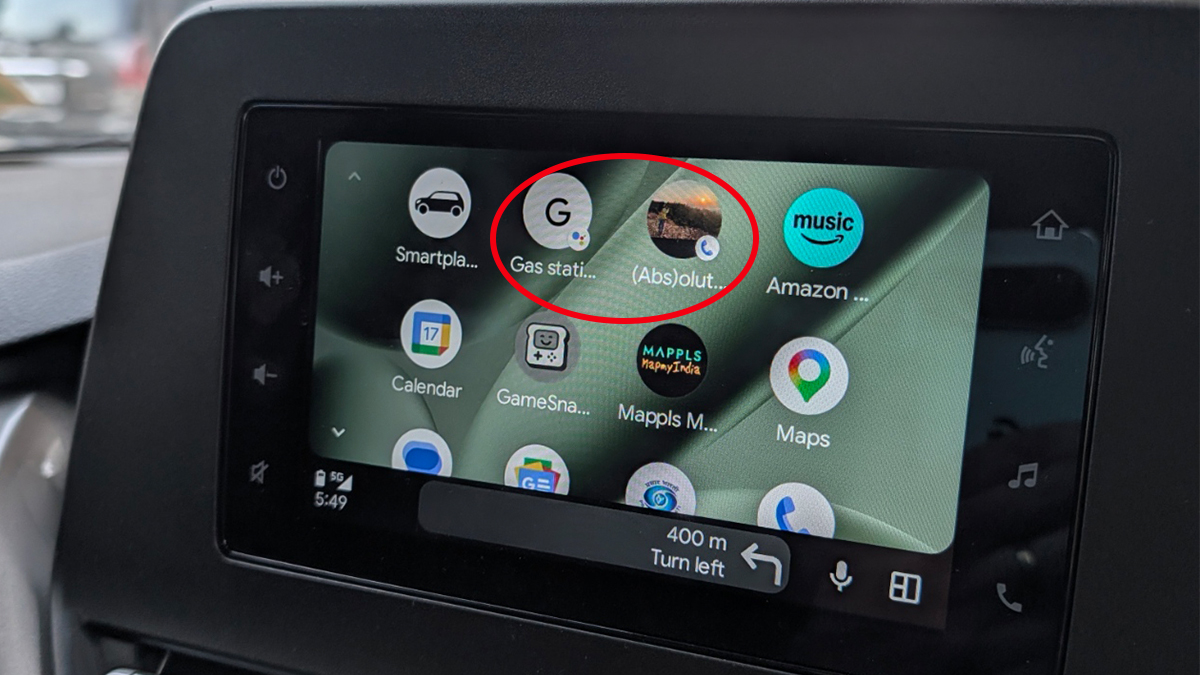
- Assistant Action Shortcut: This is more versatile, enabling you to program any command you would typically give to Google Assistant. Examples include "Navigate home," "Find the nearest gas station," "Play my driving playlist," or "Text [contact name] I’m on my way."
To create and manage these shortcuts:
- On your phone, open the Android Auto settings menu.
- Tap on "Customize Launcher."
- Select "Add a shortcut to the Launcher."
- Choose between "Call a contact" or "An Assistant action."
- For "Call a contact," select the desired contact.
- For "An Assistant action," type in the command exactly as you would say it to Assistant (e.g., "find all gas stations near me"). You can then label this shortcut with a more concise or descriptive name. Android Auto also provides an option to test the Assistant action before saving it, ensuring it performs as intended (Android Auto must be active in your car for the test).
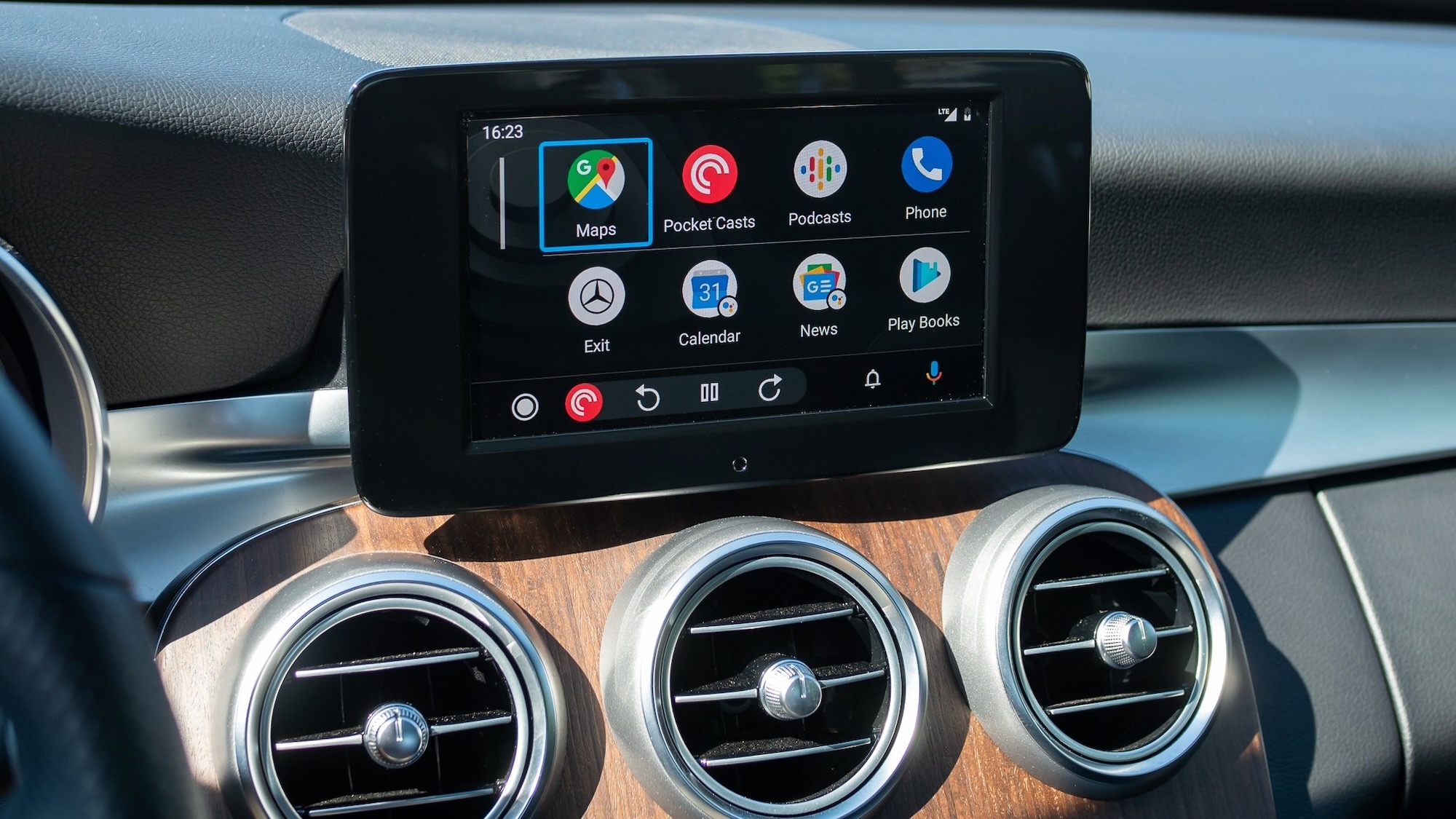
- Once created, you can return to the "Customize Launcher" menu to reorder your apps and shortcuts. Drag and drop your most important shortcuts to the top of the list so they are immediately visible and accessible when you open the app drawer in Android Auto.
These custom shortcuts significantly enhance efficiency and safety. They provide a quick, reliable method for executing common tasks, circumventing potential issues with voice recognition in noisy environments. By reducing the number of steps or the cognitive effort required to initiate an action, they minimize the time a driver’s attention is diverted from the primary task of driving.
5. Enhancing Usability with Quick Controls (Taskbar Widgets)
The Android Auto interface is designed to keep essential information readily available. However, when an application like Google Maps or Waze is displayed in full-screen mode, the media playback controls for music or podcasts often disappear, requiring the user to switch back to the media app to pause, skip, or adjust volume. This can be inconvenient, especially for passengers who might want to control the music without interrupting the driver’s navigation view.
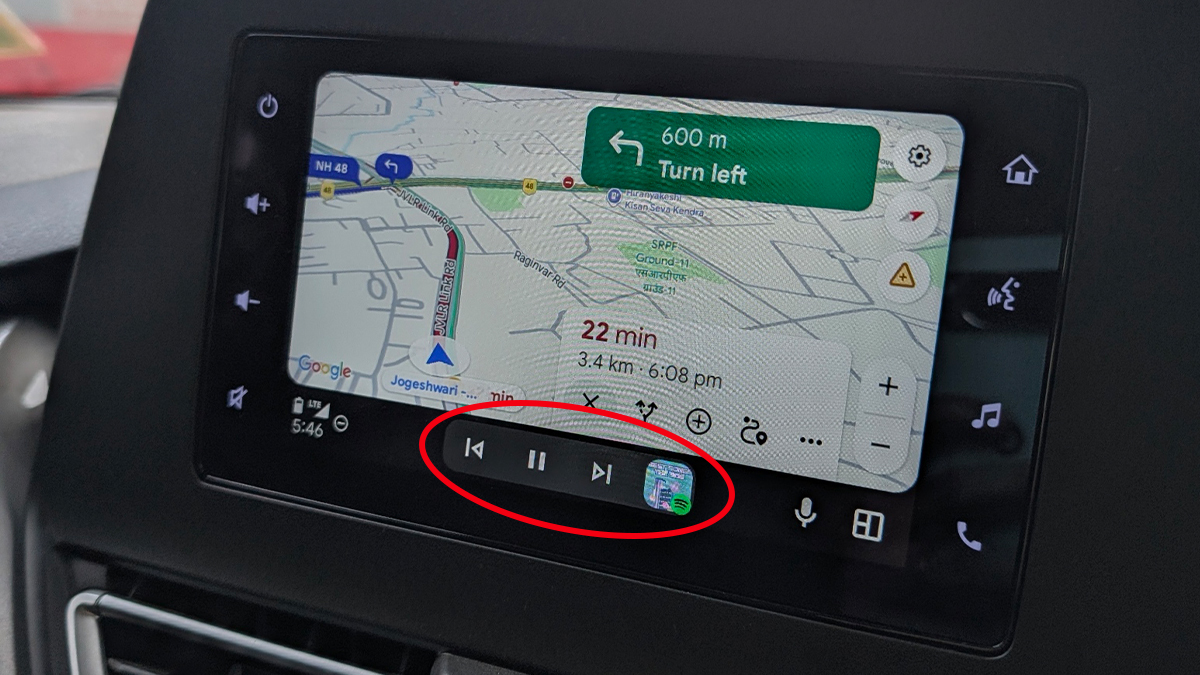
The "Taskbar widgets" feature addresses this by embedding media controls directly into the persistent taskbar at the bottom of the Android Auto display.
To enable this feature:
- On your phone, navigate to the Android Auto settings menu.
- Scroll down and enable the toggle switch labeled "Taskbar widgets."
Once enabled, the taskbar will intelligently display context-aware widgets. When a media app is playing in the background, essential controls like play/pause and skip track will appear directly on the taskbar, regardless of which app is currently in full-screen view. This means a passenger can easily tap the controls without the driver having to exit their navigation screen, or the driver themselves can make quick adjustments without losing sight of their route.
This seemingly minor adjustment significantly improves the fluidity and user-friendliness of Android Auto. It ensures that critical media controls are always within reach, minimizing app switching and reducing potential distractions for the driver, while also empowering passengers to contribute to the in-car entertainment experience seamlessly.
The Broader Landscape: Safety, AI, and User Empowerment
These five adjustments underscore a fundamental principle of modern in-car technology: the blend of robust features with intelligent personalization. Android Auto, in its tenth year, continues to evolve as a critical interface between our digital lives and our driving experience. The ongoing integration of advanced AI, such as Gemini, promises even more intuitive and proactive assistance, further reducing the need for manual interaction. However, as the platform grows in sophistication, the importance of user-level customization only increases.
The primary implication of these settings is enhanced driver safety. By reducing auditory and visual distractions from auto-playing music, excessive notifications, and cumbersome navigation through menus, drivers can maintain a higher level of focus on the road. Secondly, these tweaks lead to a more personalized and comfortable driving environment, tailored to individual habits and preferences. The ability to control startup, streamline tasks with shortcuts, and keep media controls accessible empowers the user, transforming Android Auto from a generic interface into a truly bespoke digital co-pilot.
As vehicle manufacturers continue to deepen their integration with platforms like Android Auto, and as wireless connectivity becomes universal, the emphasis will remain on creating an experience that is both technologically advanced and inherently safe. User education on how to effectively customize these powerful tools will be paramount in unlocking their full potential.
In conclusion, while Android Auto offers a robust and user-friendly experience right out of the box, investing a few minutes to tweak these essential settings can dramatically improve your daily drives. From preventing unexpected musical outbursts to streamlining your interactions and minimizing distractions, these adjustments contribute to a safer, more intuitive, and ultimately more enjoyable journey every time you get behind the wheel.